Why does the scan stops?
This can happen for a variety of reasons, and while it could be a bug during the scan process, it’s more likely not. In fact, most of the time the scan stopping is not caused by Media Cleaner, your server, or even your library size. It’s usually because of hosting services.
The scan works in small batches, so it has to send repetitive requests to your server. Hosting providers, as well as some security or optimization plugins, don’t like this and will try to shut it down for you, even though you don’t want them to. If you’re working locally this shouldn’t be a problem, but if not, you’ll either need to disable these unwanted processes or work through the interruptions.
What should you do?
Sometimes it’s something like a session token getting expired. You should be able to retry the scan and continue as expected. Just click the “Retry” button and see how it goes.
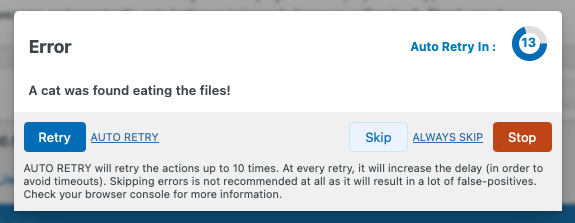
Since the scan works in batches via AJAX, server errors can interrupt the process. To work around this, you can try refreshing the page and using “Resume”, or run the scan via WP-CLI, which avoids browser sessions altogether and runs server-side. The plugin should automatically check for token validity and refresh it, so this shouldn’t happen too often. Resuming the process should resolve the issue.
Make sure to quit or refresh the tab — do not stop the scan, as this will completely halt the process and delete the current progress to start fresh. If you want to resume, just leave it, reopen the dashboard, and click Resume.

If you see the Resume button, it means your last scan did not complete entirely. You can hover your mouse over the button to see at which step the scan stopped before the dashboard was loaded this time.
If the error persist or if this pop up does not even show up, here’s how to troubleshoot it:
- Run a scan as usual.
- After it stops, open your browser’s developer tools:
- In Chrome, right-click anywhere on the page and select “Inspect”, then go to the Console tab to check for any JavaScript errors.
- Then go to the Network tab and look for any failed requests ( in red ) especially those with status code 500, 403, or timeout. Check the payload section and server response which should show more information. If it shows a timeout, forbidden access, or any unexpected redirect, it could be:
- A server session timeout
- A firewall or security plugin blocking repetitive AJAX requests
- A rate limit or anti-bot measure by your host
In case of a 500 error:
- Check your server’s PHP error logs to see if a fatal error occurred during the scan. If you don’t know where to find the PHP logs, your hosting provider can help — just ask them to send you the latest PHP error log entries.
- If there is a fatal error, most of the time, this can be fixed by disabling the “shortcode analysis”. Try again with these options off to see if this helps. If there is still a fatal error, let us know by sharing the error logs through the support.