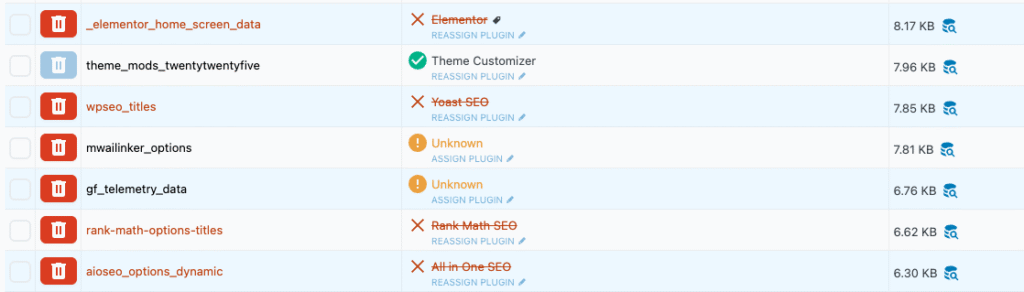
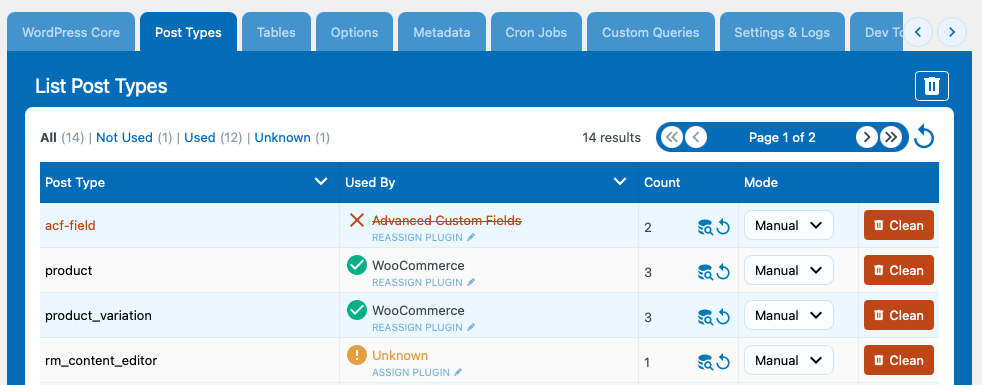
The plugin cannot automatically detect which data belongs to which plugin, as WordPress doesn’t provide that information when plugins register something in the database. The plugin relies on users sharing their plugin assignments. It is community driven.
You can click the “Assign Plugin” button on any entry to select which plugin it corresponds to.
Yellow (warning) means we don’t know which plugin relates to this entry.
Green means the plugin has been found enabled on your site and is a known plugin for this entry.
Red means it’s a known entry, but the plugin is detected as inactive.
Once you’ve assigned entries to plugins, you can share them with us so we can update them for all other users. Just go to the Settings tab, copy the Custom Used By data, and send it to us via support.
Frequently Asked Questions
Custom Queries
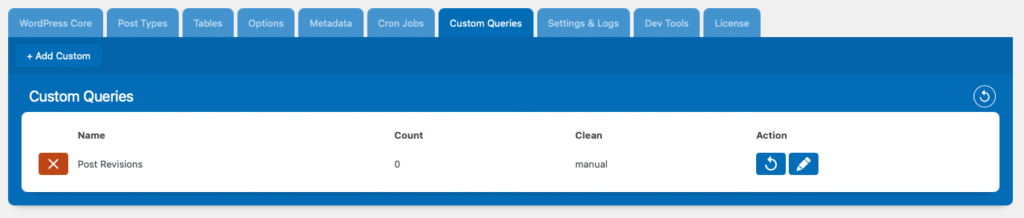
For anything that is not natively part of Database Cleaner, you can create your own cleaning query—just like the ones handled in the WordPress Core tab. You can use the “Add Custom” button to register your query and manage it directly within the interface.
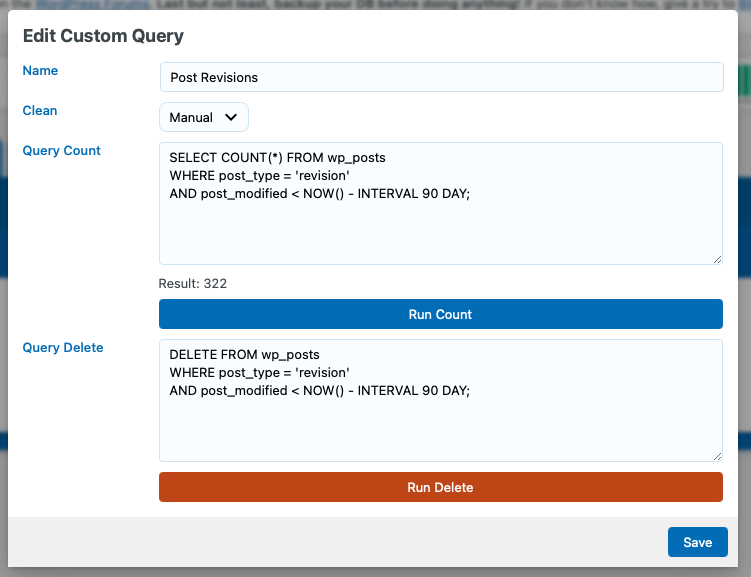
You will need to register two fields: one query to count what you want and one query to clean what you want. Don’t forget to set up a name and a clean method.
Here’s a simple example of how you might use the Custom Query feature to count and delete old post revisions.
Cron Jobs
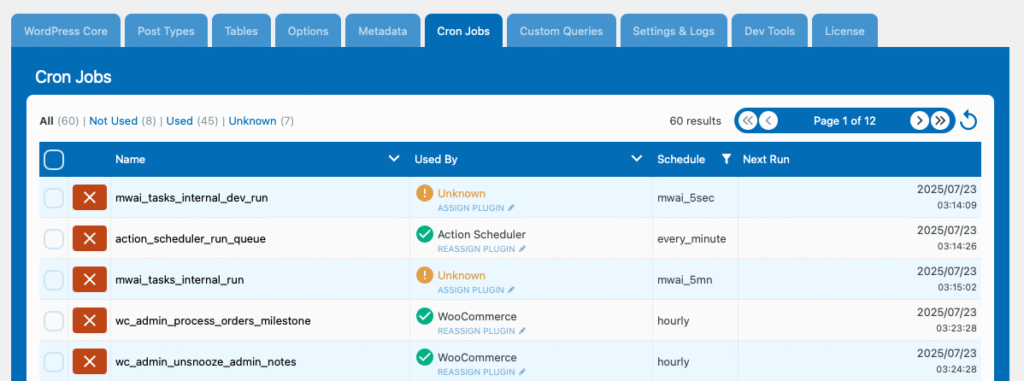
Database Cleaner can also list and show you all the cron jobs on your server. Cron jobs are entries in your database that WordPress checks against their scheduled values in order to run the code associated with each job at the appropriate time.
Database Cleaner itself uses cron jobs—such as the Nyao Sweeper—to clean your database at regular intervals.
You can view, delete, and inspect the schedule of each cron job, including when it is next scheduled to run.
Metadata
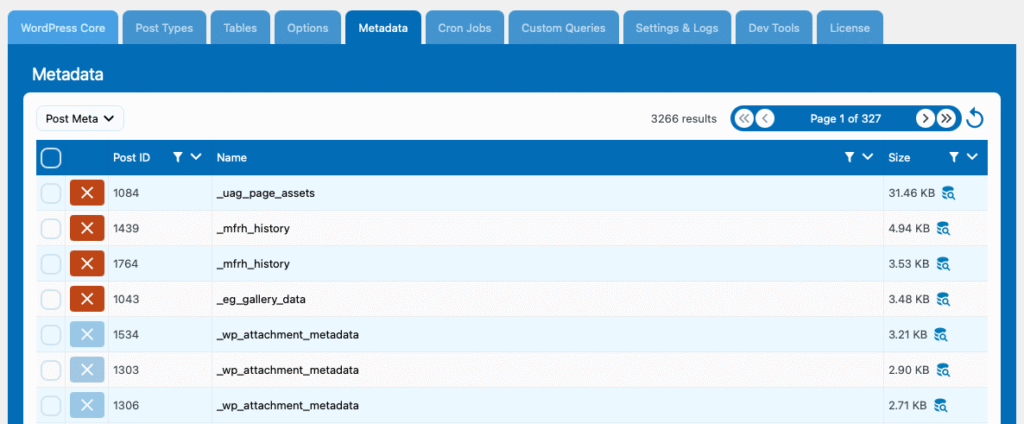
In WordPress, your posts and users have additional information related to them, but this data is not stored directly within the post or user entries. Instead, it’s stored in separate tables and linked via post or user IDs.
For example, if you’re using ACF (Advanced Custom Fields) to add custom data to a post, that data isn’t embedded in the post itself—it’s stored as post metadata. Similarly, if you’re using a membership plugin, user-related data is stored as user metadata. This allows for flexible extension of post and user information without altering the core database structure.
You can switch between Post Meta and User Meta using the dropdown in the top right corner.
The red cross button allows you to clean (delete) metadata entries. If the button is disabled, it means the data is part of the WordPress core and should not be altered for safety reasons.
Options
The Pro Version of Database Cleaner recognizes the options of 5,000 different plugins.
You’ll need a bit of patience to tackle this section—but it’s worth it! Most plugins create options filled with settings and various types of data. Your WordPress installation is likely full of unused registered options, which is unfortunate but expected.
One particular type of option is especially problematic: autoloaded options. These are loaded into memory on every single request to your WordPress site. That means even unused autoloaded options can have a significant performance impact.
You can tick or untick the Auto box to change the autoload setting of each option.
Take time to review each autoloaded option. If it’s clearly useless, delete it. If you’re unsure whether it’s needed on every request, consider setting its autoload to off—this ensures it’s only loaded when specifically required.
Tables
This section is more about reducing the size of your database than directly enhancing its performance (even though the two are somewhat correlated).
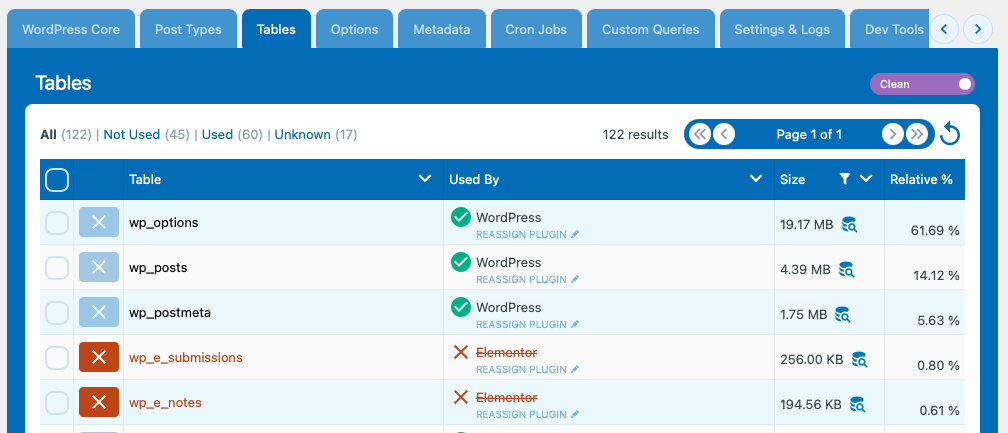
Database Cleaner will try to identify which plugin each table is associated with. You can click on the Inactive section and delete the tables you believe are no longer needed.
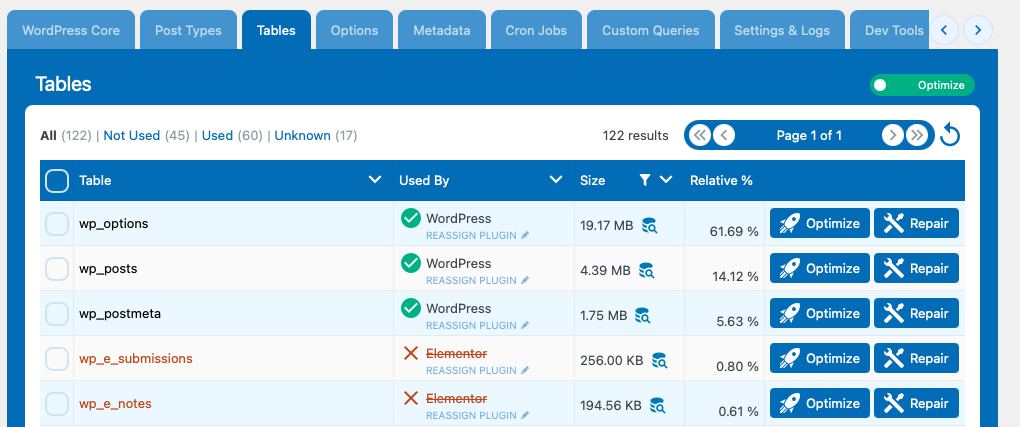
Optimization is also available. While this MySQL feature doesn’t really hurt, it doesn’t always lead to improvements. You might expect the database size to decrease, but that’s not guaranteed—it might even increase in some cases. You can switch the toggle in the top right corner to the “optimize” mode.
Post Types
In the WordPress database, one of the most heavily and intensively used tables is the posts table. It contains virtually all your content, and WordPress constantly queries it for your posts, pages, products, and other content types. Each type of content is represented by a post type (such as post, page, or product).
Having a large volume of data in this table is a common performance bottleneck for many WordPress sites. That’s why it’s important to determine whether some of your post types have become obsolete—perhaps used by plugins you’ve since uninstalled—or if they can be safely emptied from time to time.
You will see, for each post type, which plugin is using the table and how many posts are registered under that post type. If a post type exists but the associated plugin is not found on your installation, it will be highlighted in red.
The Clean action will delete all of the posts listed under that post type, so use it with caution.
WordPress Core
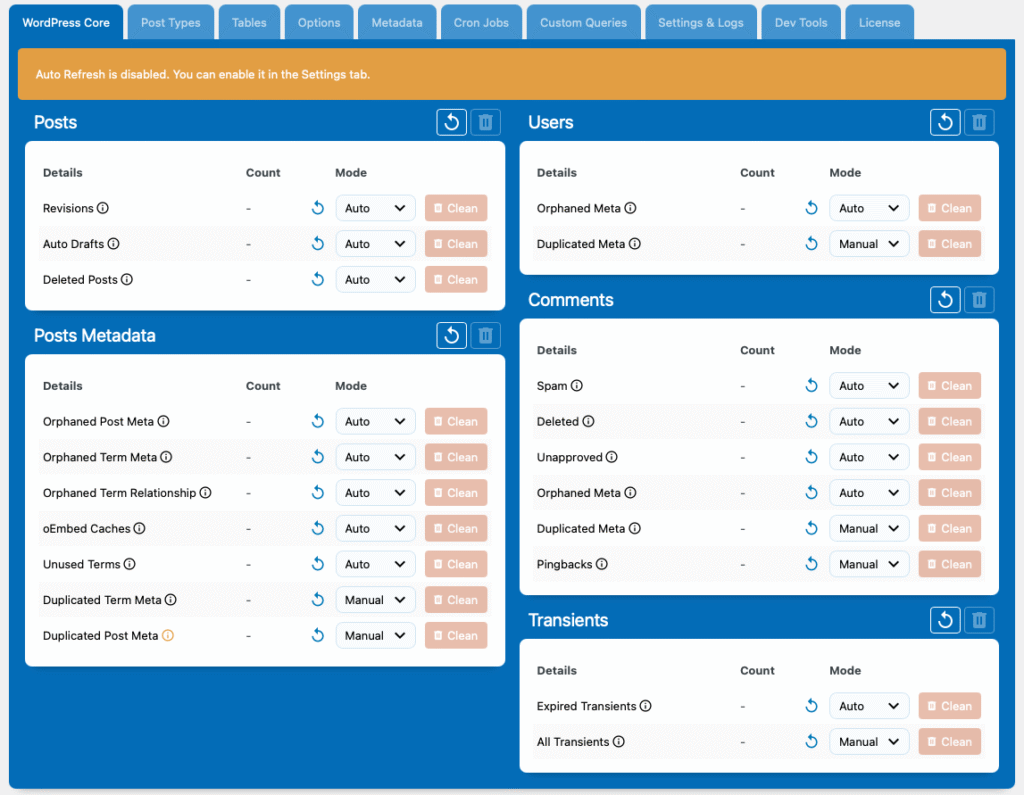
The term item here means a very specific type of data to be cleaned. Each item is basically presented as rows in different categories, and here are a few: Auto Drafts, Orphaned Term Relationship, Transient Options.
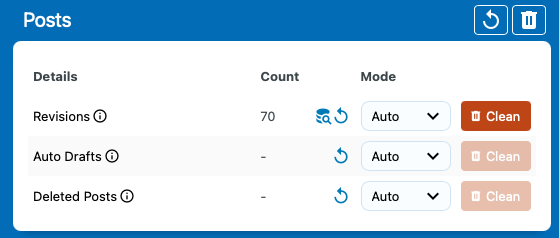
By default, the counts are empty. You can use the refresh icon to update the count of individual items or an entire category. This will display the count as of the time you refreshed it. Once refreshed, you’ll be able to inspect and clean the database data directly.
If you want all data to refresh automatically when opening the dashboard, you can enable the Auto Refresh option in the settings. Be cautious, though—running all these queries at once can overload your server if your server memory is smaller than your database size.