This is only available if you are using the PRO version of Media Cleaner.
The Clean Uploads Folder scan will check the content used across your website and will return results where each entry represents a file from your /uploads folder.
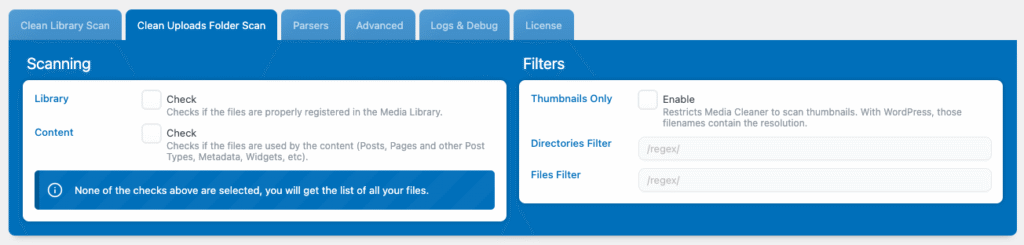
There are two types of scans you can run. The one you likely want is the Content scan, which goes through all of your website content to identify the media used across your pages.
The Library Scan matches physical files against your WordPress Media Library entries. It does not check whether a file is used on your website. Instead, it verifies whether the physical file on your server is properly linked to a corresponding Media Library entry in WordPress.
You can enable both scan types at the same time, but keep in mind that the dashboard will list both results in the same table, so it’s usually better to run only one type of scan at a time.
However, if you disable both, the scan will list all of your files. You can then use filters if you want to get a list of specific files — for instance, to retrieve all of your “.webp” files in one go.
Filters
Those filters will be applied during the scan.
Keep in mind that you can also search through the results of your scan using the search function in the Cleaner Dashboard. For example, you can type “/2020” in the search and results will be filtered by that directory. So you might not need those filters, they are for advanced users.
Before the filters are applied, the scan will need to go through all the directories and files first (one reason is that, even if you filter out a directory, some files or subdirectories might match positively your filters). Therefore, using filters will not make the scan faster.
Directories Filter and Files Filter can restrict the scanning to specific folders and/or files depending on a regular expression (expressed between two slashes). If you don’t know how to write a regular expression, it might be interesting for you to learn. There are many tutorials online, and then you can test them on websites such as Regex101. Here are a few examples:
- Directories Filter: /^$/ (only scan the root of your /uploads directory)
- Directories Filter: /^2018/ (scan only the files from 2018)
- Directories Filter: /^[0-9]{4}\/02/ (scan only the files in the February directories)
- Directories Filter: /^((?!wp-slimstat|woocommerce-pdf-invoices|wpo_wcpdf|arprice|mk_assets|fvm).)*$/ (avoid scanning specific directories)
- Files Filter: /400×400.jpg/ (scan only the files of resolution 400×400)
- Files Filter: /.jpg|.png/ (scan only the png and jpg files)
Thumbnails Only. Will only scan your thumbnails and avoid the original (full-size) images. This could also have been done with a regular expression but is to make life easier for most users. Have a look at the Recommended Procedures for the usual usage of this option.
Results
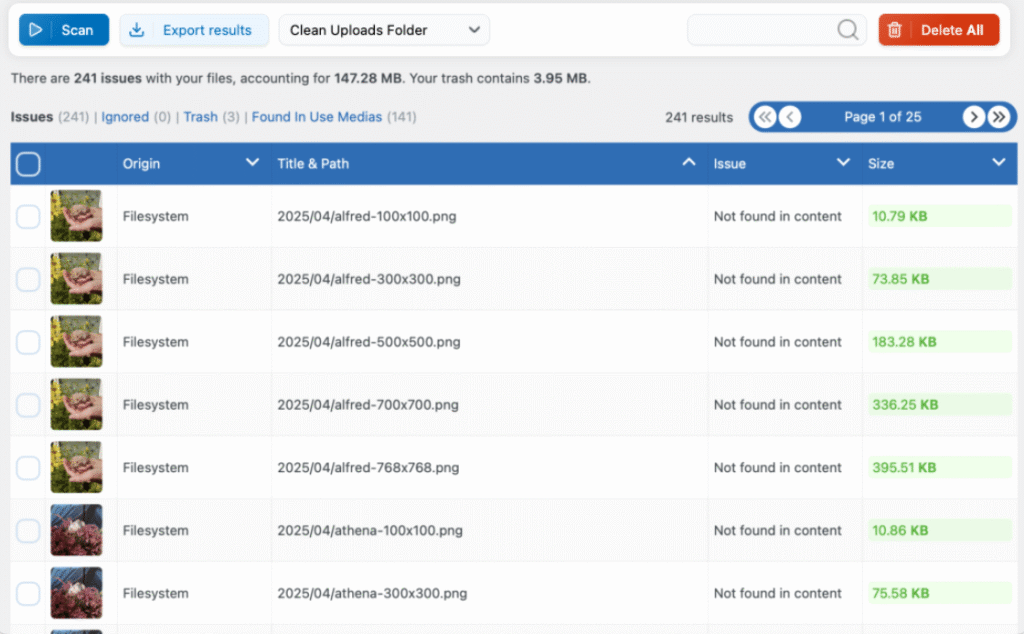
In the dashboard, make sure you have the “Clean Uploads Folder Scan” scan method selected and click the Scan button. You will see all the media that have not been found across your website. You’ll likely find many more “issues” than with the Media Library scan. As you can see here, when a media file is not used, all of its thumbnails are individually detected as not in use.