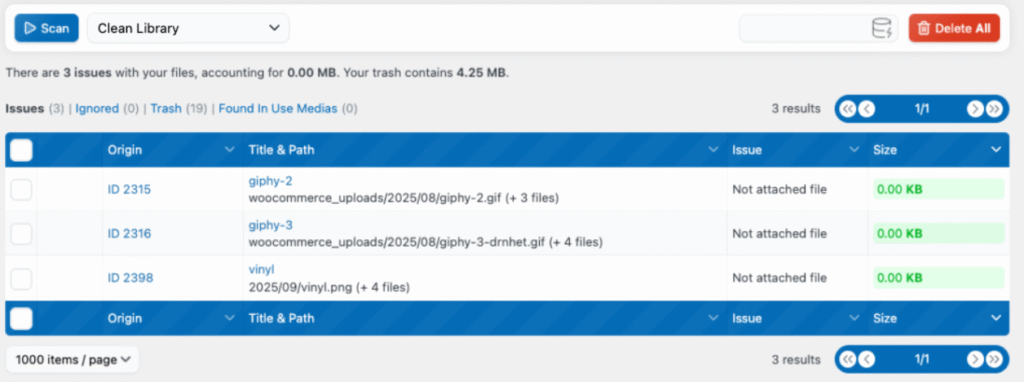
The Clean Library Scan will check the content used across your website and will return results where each entry represents a media item from your library (including all of the thumbnails from the different sizes that might come with it). If even a single one of the thumbnails is used, the whole media will be considered as in use.
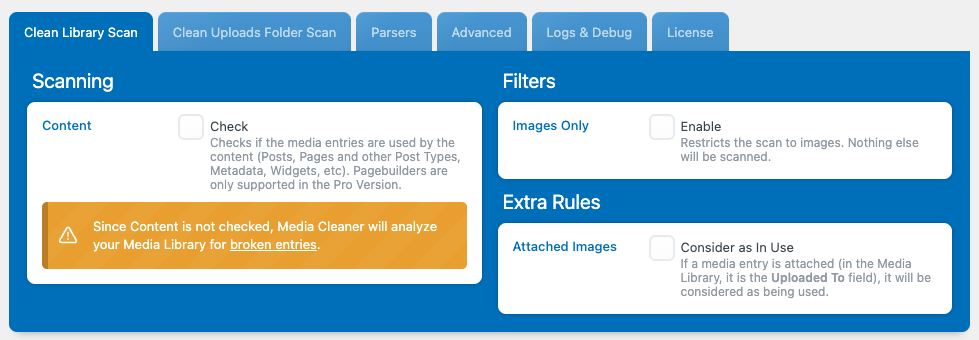
Make sure you check the “Content” option to get the expected results. If “Content” is not checked, the scan will only look for broken entries in your Media Library, meaning it will only verify whether the link for each media item actually corresponds to a valid or missing entry.
You have extra settings (specific to the Clean Library Scan) that you can enable to check only image media and to consider attached images as “in use”.
Results
Clean Library Scan: Content
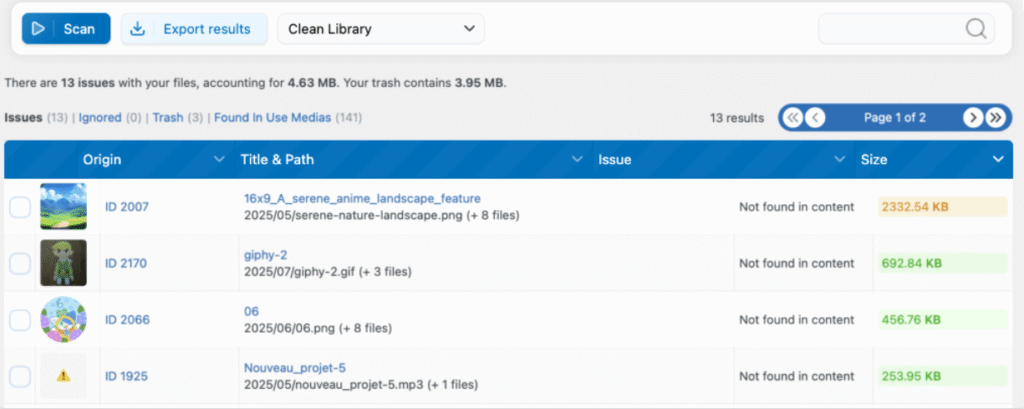
In the dashboard, make sure you have the “Clean Library” scan method selected and click the Scan button. You will see all the media that have not been found across your website. When using this type of scan, you’ll notice entries like “(+ 8 files)”—this means that the media has 8 thumbnails in addition to the original file.
Media Cleaner also detects files that are not images (unless you’re using the filter). If you see a ⚠️ icon, it means that the file has no visual representation and is a non-image file.
Clean Library Scan
If you did not select “Content,” the Clean Library Scan will look for broken entries in your Media Library. If you have some “ghost entries,” meaning there is actually a media declared but no file to match it on your server, it will be scanned as “Not attached file.”