When you upload a media file to your WordPress site, it automatically generates a set of thumbnails (smaller versions of the original image). These are used on your website to serve the most appropriate image size dynamically, helping your site load faster by adapting to each visitor’s screen size, connection speed, and other factors.
WordPress determines which thumbnail sizes to create based on a list defined by your theme, builder, or other plugins.
If you’ve changed themes or builders over time, you probably have old thumbnail sizes that are no longer needed. That’s when you can use the “Optimize Thumbnails” scan, it identifies and helps you remove these unnecessary thumbnails to keep your media library clean and efficient.
Process
┌──────────────────────────────────────────────┐
│         🔍 OPTIMIZE THUMBNAILS SCAN          │
└──────────────────────────────────────────────┘
                │
                ▼
      1. Get the list of sizes
         currently declared on your site
                │
                ▼
      2. Go through all media files
         in your library
                │
                ▼
      3. Check existing thumbnails
                │
       ┌──────────────────────────────────────┐
       │              DECISION                │
       └──────────────────────────────────────┘
        ├── If thumbnail size is NOT declared → ⚠️ Flag as ISSUE
        ├── If thumbnail size is declared → ✅ Mark as ORIGINAL
        └── If declared size has NO thumbnail → ⚙️ Generate and mark as GENERATED
Result
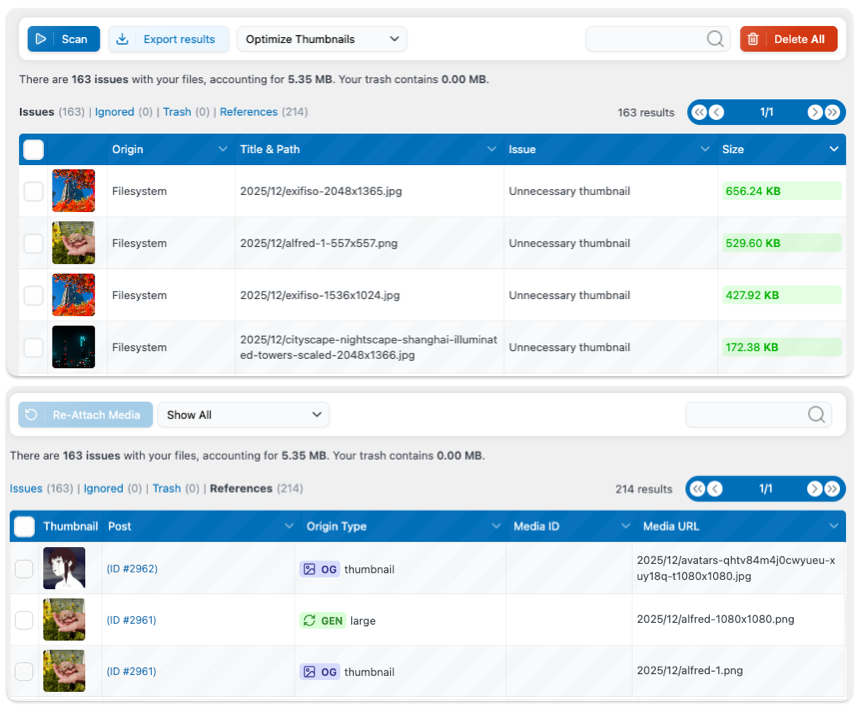
The Issues tab lists all the thumbnails detected as not part of your current size list. Be careful — this doesn’t necessarily mean those images aren’t used somewhere on your site. It only indicates that WordPress no longer generates those sizes based on your current theme or plugins.
The References tab shows all the original (OG) and generated (GEN) thumbnails that were found or created during the scan process, giving you a clear overview of what’s valid and what was newly regenerated.
Clean the Sizes
As explained, Media Cleaner helps you remove files that shouldn’t have been generated with your current sizes, but it doesn’t actually change which sizes WordPress creates.
If you want to completely remove specific image sizes, you’ll need a specialized plugin to disable them entirely.
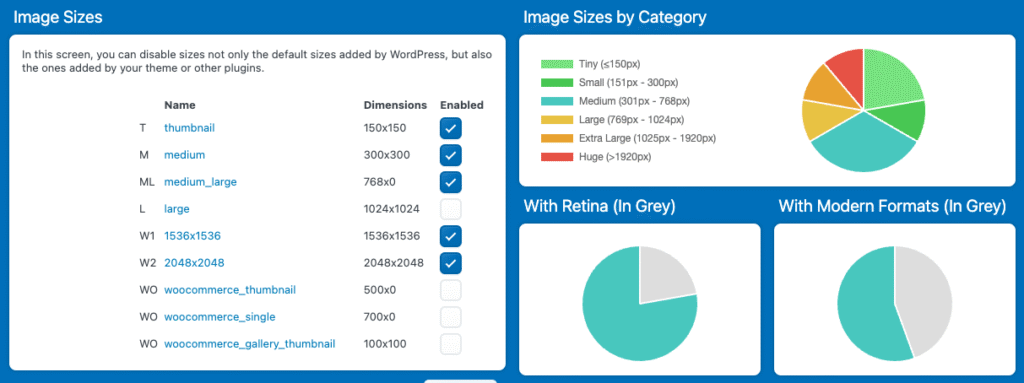
A great option is Perfect Images, it’s free and lets you easily see all the image sizes used on your website. You can simply check or uncheck the sizes you want to keep or remove, giving you full control over which thumbnails WordPress generates.