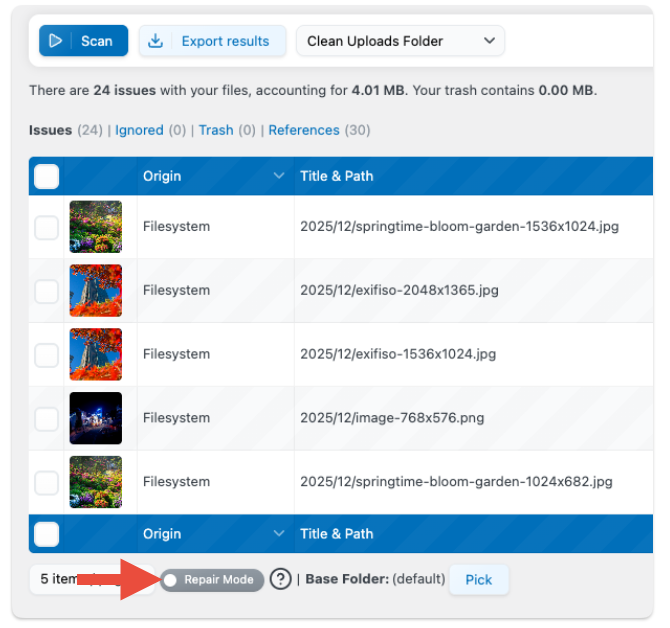
In short, the “Repair” button sends the file back to the Media Library.
When you use the ‘Repair’ button, Media Cleaner will take action to resolve issues with your media files. First, it identifies any related items (child issues) that might be causing problems and removes them to prevent future complications. Then, it re-adds the main media file (the parent) back into your Media Library. By doing this, the file is no longer seen as an isolated thumbnail or a ‘lost’ file; it becomes a fully recognized media item again, just like all the other content in your Media Library.
This would be equivalent to taking the thumbnail and manually uploading it to your Media Library to create a media entry, but Media Cleaner does it for you and cleans the related child issues.
First, run a “Clean Uploads Folder” scan, formerly the Filesystem scan, and enable the Repair Mode toggle under the results table. Then each row will have a Repair button you can click, or you can select multiple rows and bulk repair entries.